Smart Recording
Automatically start and stop recording with timecode, scene name, and cue info burned into the footage.
CueCollab controls OBS or a BlackMagic HyperDeck to record rehearsals automatically — adding a live overlay of timecode, scene name, and wall clock directly into the video so every moment is precisely identified.
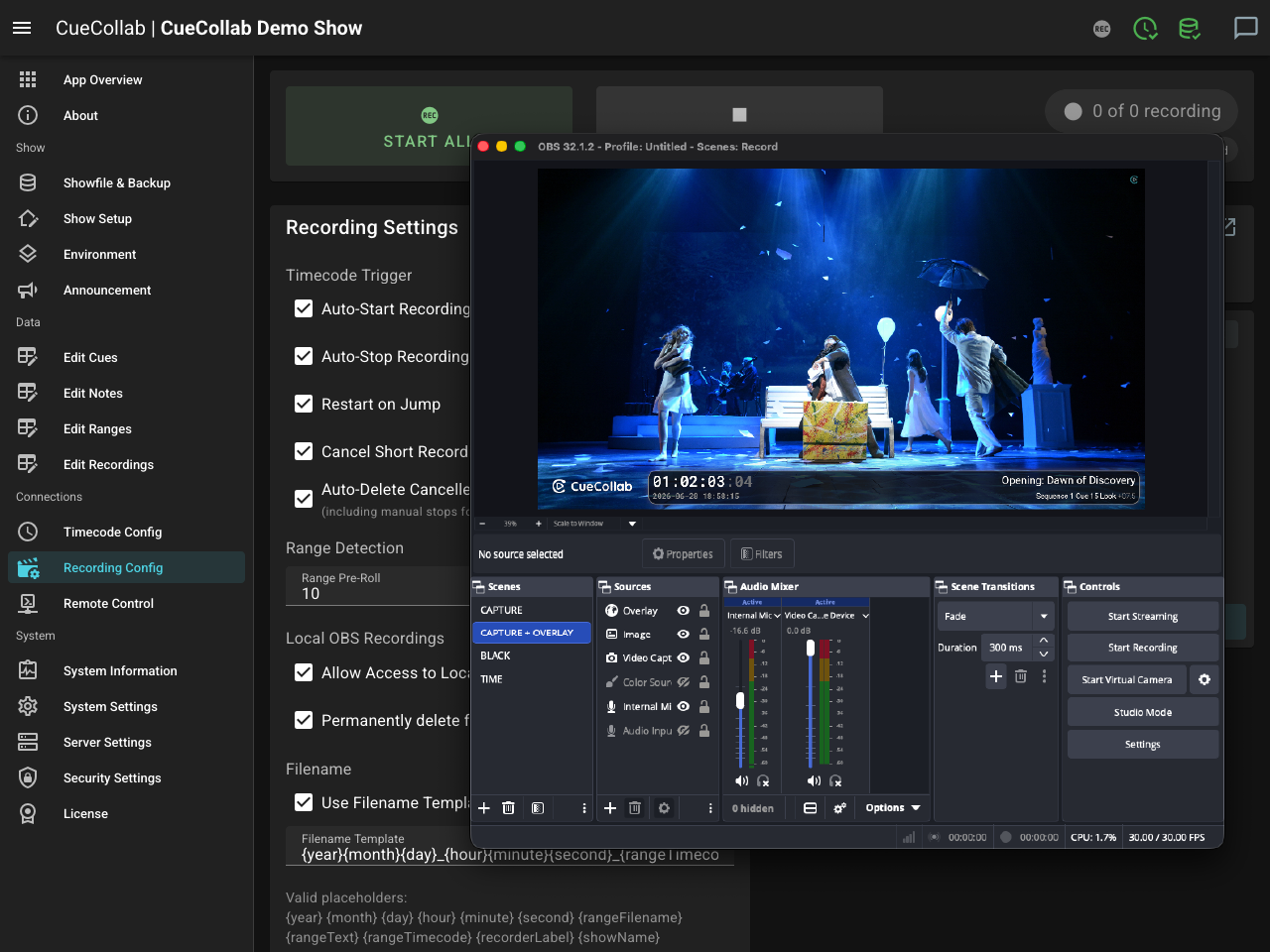
CueCollab controls external recorders — OBS on a laptop or a BlackMagic HyperDeck — to start and stop recording automatically. Two modes cover different situations:
Recording Autopilot ties recording to timecode. When the show’s timecode starts running, recording begins. When timecode stops, recording ends after a configurable delay. No manual start/stop needed.
Recording Schedule runs independently of timecode. Define start and stop actions at specific times — once on a particular date, or weekly on selected days. Useful for unattended recording sessions, daily archive windows, or any situation where timecode isn’t the trigger. Autopilot and Schedule can run alongside each other.
The Recording Overlay is a browser page captured as an OBS browser source. It adds a live panel at the bottom of the video showing timecode, scene name, wall clock, or show name — in configurable slots with custom colors and font sizes. This information is burned into the footage at capture time, making every recording self-documenting.
Recordings are tracked in CueCollab alongside their metadata (title, tags, range coverage) and are immediately accessible in the Review module the moment recording finishes. Notes written during a recording are automatically linked to the matching footage, so jumping from a note to the exact video moment takes a single click.
Use Case
A touring concert uses CueCollab to record each rehearsal automatically. OBS starts when timecode kicks in and stops a few seconds after the show ends. The Recording Overlay burns the current timecode and song name into the footage. After the run, the team opens Review and works through the recording with all notes already loaded — each one linked to the exact moment in the video, identified by the timecode visible on screen.
The details that make the difference.
Every feature in CueCollab exists because someone needed it in a real production. No fluff — just the tools that actually matter when the show is running.
Tags & Department Lists
Organize cues and notes with tags and department lists. Filter to only what is relevant to your role.
Draw on Video Frames
Pause the recording in Review and draw directly on the frame — circle a problematic transition, mark a position on stage, highlight a lighting issue. Save the annotation to an existing note or create a new one.
Audio Notes & Offline Transcription
Record a voice note with one tap to stay focused on the show. The audio is saved with the note and automatically converted to text in the background, fully offline.
OSC & MIDI Control
Control CueCollab remotely via OSC or MIDI Show Control from lighting consoles, show controllers, or custom scripts.
Excel Import & Export
Export notes to Excel for sharing, or import data in bulk for easy editing. Full columns, all metadata, both ways.
HTTPS & Secure Access
Enable a built-in HTTPS server with a self-signed or custom certificate. Secure connections make audio recording available on all devices and let you access CueCollab safely over a VPN.
No Internet Required
Everything runs on the local network. No cloud dependency — the show goes on even without internet.
Browser-Based Clients
Every team member connects from their own browser — no app to install on phones, tablets, or laptops.
URL-Stored Preferences
Display layouts, filters, and preferences are saved in the URL. Bookmark a configured page and share it with the team.
Message the Whole House
Send an announcement in one tap — it appears instantly on every browser, display, and callsheet on the network.
One Tap from Your Phone
Quick Entry turns any phone into a one-tap notepad. Configure preset phrases and fire them with a tap — timestamped to the current cue and shared with the whole team instantly.
Save the Show, Restore in Seconds
Showfiles snapshot the entire production state — cues, ranges, settings, everything. Restore before the next run or hand it off to the next crew.
No Timecode? No Problem.
No TC feed? Notes are stamped to the current cue name and time-since-cue instead. The workflow stays the same — nothing breaks.
Flag It. Track It. Resolve It.
Colored flags mark notes that need urgent attention. Resolve them when actioned — who resolved it and when is tracked automatically.
Audio Standby & Call Alerts
The callsheet plays a configurable sound when a cue enters standby and again when it comes up. Eyes on stage, not the screen — the sound tells you what's next.
Auto-Reset for Repeating Shows
Running multiple performances a day? The callsheet resets to cue one automatically when timecode restarts — ready for the next audience without touching a thing.
Easy Sharing
Export note lists as plain text or Excel and send them to anyone. Recordings are standard MP4 files with timecode and cue info burned in — no special software, no account, no context lost.
Battle-Tested Since 2021
Built and refined through real productions — not vibe-coded, not prototyped. Every feature earned its place on an actual show night.
Trigger Additional Recorders at Once
Start several OBS instances or HyperDecks simultaneously — one for review, others for backup or archive. All triggered together, automatically.
Recording Autopilot
Timecode starts — recording starts. Timecode stops — recording stops, after a configurable delay. Jumps restart the file. Short accidental takes are cancelled automatically. No operator needed.
Scheduled Recording
Set recording to start and stop at a fixed time — once or weekly. No timecode needed. Useful for unattended sessions, daily archives, or any situation where the clock is the trigger.